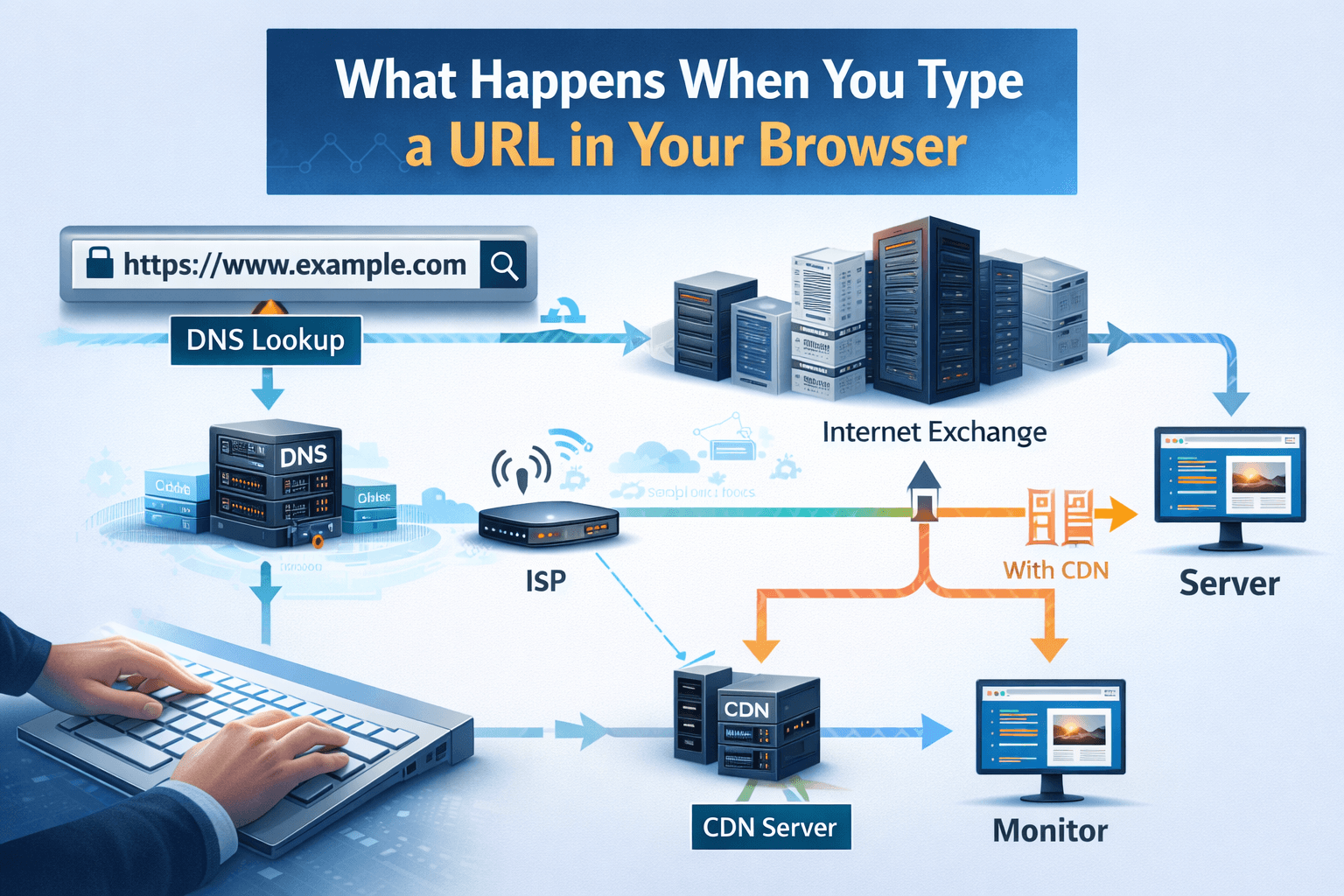
What Happens When You Type the URL https://bitsketcher.vercela.app/blogs
When you enter the URL https://bitsketcher.vercela.app/blogs into your web browser, a series of processes occur behind the scenes to retrieve and display the content of the webpage. This blog will walk you through the various stages of this process, from the moment you hit 'Enter' to the final rendering of the webpage in your browser.
1. Breaking Down the URL
The URL can be broken down into three main components: scheme, domain, and path.
Scheme: This indicates the protocol used to access the resource. In this case, "https" signifies that the connection is secure, utilizing SSL/TLS for encryption.
Domain: The domain "bitsketcher.vercela.app" is the human-readable address that directs the browser to the server hosting the content. It is translated into an IP address through DNS resolution.
Path: The path "/blogs" specifies the exact location of the resource on the server. It directs the server to the specific content being requested.
2. DNS Resolution
The first step in accessing any website is DNS (Domain Name System) resolution. When you type the URL into your browser:
The browser checks its cache to see if it has recently accessed the domain and has the corresponding IP address.
If not found, the browser queries a DNS server to resolve the domain name bitsketcher.vercela.app into an IP address.
The DNS server responds with the IP address, allowing the browser to know where to send the request.
3. Establishing a Connection
Once the IP address is obtained, the browser establishes a connection to the server hosting the website. This typically involves:
Using the HTTP or HTTPS protocol to initiate a connection.
For HTTPS, a secure connection is established through SSL/TLS, ensuring that data transmitted between your browser and the server is encrypted.
However, directly using TCP for data transmission is not ideal for several reasons:
Security: TCP lacks built-in encryption, making data vulnerable to interception.
Performance: Without optimization, TCP connections can be slower due to latency and packet loss.
Many companies use Content Delivery Networks (CDNs) for serving static data. CDNs enhance performance by:
Distributing content across multiple servers located closer to users, reducing latency.
Offloading traffic from the origin server, allowing it to handle dynamic requests more efficiently.
CDNs work by caching static resources (like images, stylesheets, and scripts) on various edge servers. When a user requests a resource, the CDN serves it from the nearest edge server, speeding up the delivery process.
4. Sending the HTTP Request
After establishing a connection, the browser sends an HTTP request to the server. This request includes:
The type of request (GET, POST, etc.), with a GET request being the most common for retrieving web pages.
Headers that provide additional information about the request, such as the browser type and accepted content types.
5. Server Processing
Upon receiving the request, the server processes it. This may involve:
Retrieving the requested content from a database or file system.
Executing server-side scripts (like PHP, Node.js, etc.) to generate dynamic content.
Preparing the HTTP response with the appropriate status code (e.g., 200 for success, 404 for not found).
6. Sending the HTTP Response
Once the server has processed the request, it sends back an HTTP response to the browser. This response includes:
The status code indicating the result of the request.
Response headers that provide metadata about the response.
The content of the webpage, typically in HTML format.
7. Rendering the Webpage
After the browser receives the HTTP response, it begins rendering the webpage:
The browser parses the HTML content and builds the Document Object Model (DOM).
It processes CSS to apply styles and JavaScript to add interactivity.
Images and other media are loaded as specified in the HTML.
8. Displaying the Page
Finally, the browser displays the fully rendered webpage to the user, allowing interaction with the content. This could involve:
Scrolling through articles in the blog.
Clicking on links to navigate to other sections of the site.
Engaging with interactive elements such as forms or buttons.
Conclusion
Typing the URL https://bitsketcher.vercela.app/blogs initiates a complex and efficient process that transforms your request into a visual experience. Understanding these steps can enhance your appreciation for the technology that powers the web and the seamless interactions we often take for granted.